Tag: website

  • Why Businesses Need Virtualization and Cloud Computing

    Why Businesses Need Virtualization and Cloud Computing

    In today’s digital-first world, businesses are constantly pressured to work faster, reduce costs, protect data and remain competitive. But many companies still struggle with legacy IT systems, costly hardware, slow software roll-out and limited scalability.

    Imagine running a business where every time your company grows, you need to buy more physical servers, hire more IT staff and spend weeks installing infrastructure. It’s expensive, time-consuming and inefficient.

    This is exactly why virtualization and cloud computing have become a staple for modern businesses. By adopting virtualization and cloud computing, companies can optimise resources, improve flexibility and reduce the burden of managing physical infrastructure.

    Organisations are leveraging these technologies to become more agile, reduce operational costs, enable remote working and scale on demand, from startups to global enterprises. Businesses are changing how they operate using virtualization and cloud computing technologies whether it’s hosting websites, managing customer data, running applications or enabling hybrid work environments.

    In this guide you will learn:

    • What is Cloud Computing and Virtualisation?
    • How they work as a team
    • Virtualisation types in cloud computing
    • Business benefits at a glance:
    • Practical examples
    • Practical implementation advice
    • Why investing in cloud infrastructure is a smart business decision

    What is Cloud Computing and Virtualisation?

    Before you understand why businesses need them, it’s important to understand what these technologies actually are.

    What Is Virtualization?

    Virtualisation is creating virtual versions of physical resources such as :

    • servers
    • Storage devices
    • Networks 
    • Applications 
    • Operating Systems

    With virtualisation, the same hardware can run multiple virtual machines ( VMs ) instead of one physical machine running one operating system .

    A cloud computing VM ( Virtual Machine ) is like a real computer , but is digital inside a server environment .

    For instance:

    A single physical server company can use virtualisation to run:

    • Database server
    • A web server
    • A test environment
    • A reserve system

    all on the same piece of hardware.

    It increases the efficiency and reduces the hardware wastage.

    What’s Cloud Computing?

    Cloud computing is the delivery of computing services over the Internet including:

    • Servers 
    • Databases 
    • Storage 
    • Networking 
    • Software 
    • Analytics

    Rather than keeping it all on local computers or on servers that the company owns, businesses can access resources online through cloud providers.

    Common cloud platforms are:

    • Amazon Web Service (AWS)
    • Cloud Azure
    • Google Cloud Platform.

    Cloud computing empowers businesses to:

    • Access data anywhere
    • Scale resources on demand
    • Lower infrastructure costs
    • Boost collaboration

    How Cloud Computing and Virtualisation Work Together

    Virtualisation is usually considered as the root of cloud computing.

    Cloud providers use virtualisation to subdivide physical servers into multiple virtual environments. This means that instead of buying expensive infrastructure, businesses only rent the resources they need.

    For example:

    Cloud providers may have one large server in their data center. With virtualisation they can create hundreds of virtual machines for different customers.

    Combining these gives:

    • More efficient resource use
    • Cost Effectiveness 
    • Growth 
    • Potential 
    • Adaptability

    Modern cloud computing is impossible without virtualisation .

    Types of Virtualisation in Cloud Computing:

    By knowing the different types of virtualisation in cloud computing, businesses can select the technology that best fits their needs.

    1. Virtualisation of Servers

    Server virtualisation is the creation of multiple virtual servers on a single physical server.

    Advantages:

    • Reduced hardware costs
    • Improved server usage
    • Simpler maintenance
    • Faster deployment . 

    Example :

    A company that has multiple websites can host all of the websites on a single physical server, but in different virtual environments.

    2. Virtualising the Desktop

    Desktop virtualisation is a technology that enables workers to access their desktops remotely from any device.

    Advantages:

    • Enables telecommuting
    • Enhances security
    • Centralised management

    Sample:

    Cloud-based virtual desktops let employees securely access their office desktops from home.

    3. Virtualisation of storage

    This combines several storage devices into one centralised storage system.

    Advantages:-

    • Backup management simplified
    • More efficient storage
    • Easier access to data

    4. Virtualisation of Networks

    Network virtualisation allows the creation of virtual networks separate from physical hardware.

    Advantages:

    • Increased network speed
    • Improved Security
    • Simpler scalability

    5. Virtualisation of Applications

    Apps operate in a virtual environment, not directly on the device.

    Advantages:

    • Rapid software deployment
    • Fewer compatibility issues
    • Improved safety

    Why Virtualisation and Cloud Computing Are Needed in Business

    Now let’s review the biggest reasons businesses are rushing to adopt these technologies.

    1. Lower IT Costs

    Cost Savings: The biggest advantage of virtualisation and cloud computing.

    Traditional infrastructure requirements:

    • Expensive hardware.
    • Cost of operation
    • Energy consumption
    • Cooling systems.
    • IT personnel

    Virtualisation and cloud computing:

    • Reduced physical server requirements
    • Businesses only pay for what they consume
    • Cloud providers take on maintenance responsibilities

    Case in the Real World

    A small eCommerce company used to spend thousands each year just for server maintenance. They shifted to a cloud-based virtual infrastructure, cutting its IT costs by nearly 40%.

    2. Improved scalability

    Businesses grow in unpredictable ways. Conventional infrastructure cannot change quickly.

    With cloud computing, businesses can:

    • Boost Storage Instantly
    • Add virtual machines as needed
    • Scale traffic spikes applications

    Example

    During a sale, an online shopping store may require additional servers to serve more customers To avoid buying permanent hardware , they can temporarily increase resources .

    3. Enhanced Business Continuity

    Downtime can destroy productivity and customer confidence.

    The Cloud-Based Virtual Systems offer:

    If one server goes down, virtual machines can be relocated quickly to another server.

    This reduces downtime and avoids data loss.

    4. Enhanced Remote Work Capabilities

    Modern businesses are more reliant than ever on remote and hybrid work environments.

    Virtualisation and cloud computing enable remote collaboration by allowing:

    • Cloud applications
    • Remote Desktop Connection
    • Shared Filesystems
    • Real time collaboration tools

    Employees can securely work from anywhere.

    5. Quicker Deployment and Innovation

    Launching new applications or services typically takes weeks or months.

    In virtualised cloud environments businesses can:

    • Rapid application deployment
    • Test software in a safe way
    • Spin up development environments quickly

    It speeds up innovation and reduces lags.”

    6. Advanced Security and Data Privacy

    Many companies believe that cloud systems are less secure, but in fact, modern cloud providers spend a lot of money on cybersecurity.

    Benefits are:

    • Encryption advanced
    • Multi-factor authentication
    • Ongoing surveillance
    • Automatic updates
    • Detection of threats

    Virtualisation separates workloads and limits the possibility of attacks throughout the system.

    7. Resources Are Used Efficiently

    Physical servers are often under-utilized.

    Virtualisation is the ability to run multiple workloads on a single piece of hardware to get the most efficiency out of that hardware.

    That means:

    • Reduced energy consumption
    • Less waste of hard ware
    • Increased operational efficiency

    It also encourages environmentally sustainable business practices.

    Cloud Computing VM: What Makes Virtual Machines Important

    A cloud computing VM is one of the most important components of the modern IT infrastructure.

    Virtual machines enable businesses to:

    • Run multiple OSs
    • Safely test applications
    • Isolate workloads.
    • Increase in flexibility

    For example,

    In a software company, you might have one VM for development, one for testing, and one for production.

    If one environment crashes, the others are unaffected.

    This separation improves the stability and the operational reliability.

    Real World Business Examples

    Netflix 

    Netflix utilises cloud computing to deliver content to the world. With cloud infrastructure, they can support millions of users at the same time without any downtime.

    AirBnB

    “Airbnb is utilising cloud-based systems to efficiently manage bookings, user data, and global traffic.

    Startups & Small Business

    One of the great benefits of cloud computing to small businesses is the removal of large up-front investments.

    Rather than purchasing costly servers, startups can:

    • Lease infrastructure cloud
    • Gradually build up
    • Growth Focus

    This levels the playing field with larger competitors.

    Step-by-Step Virtualisation and Cloud Computing Deployment

    Here’s how businesses should think about adopting.

    Step 1: Review Current Infrastructure

    Calculate :

    • Current servers – Applications
    • Storage systems
    • IT expenses Security needs
    • Identify inefficiencies and areas of improvement.

    Step 2: Identify Business Goals

    Know what you want to achieve:

    • Cost-cutting
    • Improved scalability
    • Support for remote work
    • Enhanced security
    • Roll out applications quicker

    Step 3: Pick the right cloud model Public Cloud

    Infrastructure shared and managed by providers.

    Ideal for:

    • Small business
    • Companies that are cost-conscious
    • Private Cloud

    Dedicated infrastructure for single organisations.

    Best for: [U]

    • Large corporations
    • Highly Regulated Industries:
    • Hybrid Cloud

    Hybrid public & private cloud.

    • Recommended for
    • Companies that need flexibility

    Step 4: Choose a reputable cloud provider

    Let’s consider the following

    • Security features
    • Pricing Scalability
    • Customer Service
    • Criteria for compliance

    Step 5: Transfer Applications and Data

    Migrate all at once or migrate everything in small batches.

    Begin with:

    • Non-critical applications
    • Backup System
    • Test environments

    Step 6: Train the Workers

    Successful adoption is said to occur when employees are able to use technology well.

    Train on :

    • Cloud technologies Security measures
    • Digital environment
    • Issues For Businesses

    While virtualisation and cloud computing have many advantages, businesses can face challenges such as:

    • Migration intricacy
    • Initial expenses
    • Security issues
    • Staff training needs

    But with proper planning and expert help, these can be minimised.

    The Future of Virtualisation and Cloud Computing

    Cloud innovation will be a major driver of the future of business technology.

    Some of the emerging trends are:

    • Cloud services powered by AI
    • Edge computing
    • Serverless architecture
    • Multi Cloud Strategies
    • Green Cloud Computing

    Early adoption of these technologies will give businesses a competitive edge.

    Frequently asked questions FAQs

    1. What are the differences between virtualisation and cloud computing?

    Virtualisation is the process of creating virtual versions of physical resources . Cloud Computing is the delivery of computing services over the internet . Cloud infrastructure is often powered by virtualisation.

    2. What are the types of virtualisation in cloud computing?

    There are four main types:

    Server virtualisation,

    • Desktop virtualisation
    • Virtualisation of storage
    • Network virtualization
    • Application virtualisation

    3. What is a VM in cloud computing?

    A cloud computing VM (Virtual Machine) is a virtual computer that runs within a cloud environment. It is digital, but acts like a physical computer.

    4. Is cloud computing secure for businesses?

    Yes. The majority of cloud providers utilize sophisticated security measures, including encryption, monitoring, and authentication systems, to safeguard business data.

    5. Small Business: Can You Take Advantage of Virtualisation and Cloud Computing?

    Yeah sure. Small businesses can cut infrastructure costs, become more agile and grow faster without heavy investments in physical hardware.

    The End Thoughts

    The corporate world is becoming increasingly digital, competitive and data-driven. The companies that still depend on traditional IT infrastructure may fail to meet the growing demands.

    Businesses can benefit from virtualisation and cloud computing by:

    • Reduced operating expenses
    • Enhance efficiency
    • Allow remote work
    • Enhance scalability
    • Increasing security
    • Speed Up Innovation

    From startup, eCommerce store, enterprise, to service-based companies, investing in cloud and virtualisation technologies is no longer an option, but a strategic business decision.

    If your business is ready to modernise operations, improve performance and get ahead of the competition, it’s time to consider cloud-based solutions and virtualisation strategies.

    Ready to revolutionise your business?

    Get started on your journey to virtualisation and cloud computing solutions today to improve scalability, security and operational efficiency. Get in touch with a trusted cloud service provider or IT consultant to discover the best infrastructure strategy for your business growth.

  • How to Check Python Version and Update It Easily

    How to Check Python Version and Update It Easily

    If you have ever tried to install a Python library, run a script or follow a coding tutorial and got an error message along the lines of “Python version not supported”, you are not alone. Many beginners, and even experienced developers, struggle with outdated Python installations or confusion around having multiple Python versions on their systems.

    The good news? As it turns out, checking and updating the Python version is surprisingly easy once you know the basics.

    If you’re a beginner learning to program, a data analyst working in automation or a developer building web apps, keeping Python up to date is critical for compatibility, security and performance.

    This guide will show you:

    • Verify that Python is installed
    • How to check Python version in CMD, Terminal and IDES
    • Upgrade Python on Windows, macOS and Linux
    • Usual problems and solutions
    • Why upgrading Python is important

    Let’s go.

    What is Python? And why does version matter?

    Python is one of the world’s most popular programming languages. It is commonly used for:

    Python has regular releases of new versions to improve:

    • Security 
    • Speed 
    • Features
    • Libraries and frameworks compatibility

    For example, many popular libraries today such as TensorFlow or Django may not be available for old versions of Python. You will get installation errors or broken scripts if you’re running old software.

    This is why it’s good to know how to check the python version and update it from time to time.

    Why You Should Keep Python Up to Date

    Why it is important to update Python Before we get into commands and steps, let’s see why.

    1. Enhanced security

    Older versions may have security holes that hackers can exploit. Includes important security fixes. [2.1.11]

    2. Improved Performance

    New versions of Python tend to be faster and use less memory.

    3. Compatibility with new libraries

    Many tools require newer versions of Python to work properly.

    For example:

    Most new AI frameworks now require Python 3.10+

    4. Access New Features

    Each release has useful features to make coding easier and cleaner.

    5. Better Developer Experience

    New versions often include:

    • Improved error messages
    • Better debugging
    • New syntax improvements

    Checking If Python Is Installed on

    Before you upgrade Python you have to check whether Python has been installed on your system.

    Windows Step 1: Open Command Prompt

    Press: 

    Step 2: Run This Command python –version

    Or, this:

    python –version

    Python 3.12.2

    If Python is installed, you will get the version number.

    Otherwise you might get:

    • “Python is not a recognised
    • ‘command not found

    This means that Python is either:

    • Not installed yet
    • Not found in PATH

    How to Check Python Version in Command Prompt

    Most users search for how to check the python version in cmd because cmd is the most common way on Windows.

    Simply go to CMD and write:

    • python -V

    Another option:

    • python –version

    The py launcher is available by default on more recent Windows installations.

    How to Check Your Python Version on Mac OS

    Open Terminal and execute:

    • python3 -V

    For example:

    • Python 3.11.5

    On modern macOS systems python3 is used instead of python.

    How to check Python version in Linux

    Most Linux distributions already have Python installed.

    Apri Terminale e digita:

    python3 -V

    or

    python -V

    One of these commands will do the trick depending on your Linux dist.

    How to Check Python Version in Visual Studio Code

    Also, if you are using Visual Studio Code, you can check the installed Python interpreter.

    Proceedings

    Open VS Code Hit: Ctrl + Shift + P Search:

    Python: Choose Interpreter

    You will see all your installed python versions.

    This is very useful when you want to manage multiple python environments.

    How to Upgrade Python on Windows

    Python on Windows is easy to update.

    Method 1: Download the latest version

    Step 1: Visit the Official Python Website

    Go to:

    • Official Website of Python

    Step 2: Get the Latest Version

    Click:

    • “Install python”

    Step 3: Execute Installer

    IMPORTANT:

    Select the box:

    • Add Python to PATH

    Then click:

    • Upgrade now 

    Method 2: Update through Microsoft Store

    If you installed Python from Microsoft Store:

    1. Open Microsoft 
    2. Store Search for Python
    3. Click Update.

    This is the simplest approach for casual users.

    How to Upgrade Python on macOS

    For macOS users the usual way to install Python is Homebrew.

    Update Python with Homebrew

    Step:1

    • Launch Terminal

    Step:2

    • Run
    • brew update 

    Step:3

    • Upgrade Python

    Step:4

    • brew upgrade python
    • Update: Verify
    • python3 -V

    How to Upgrade Python on Linux

    Linux systems differ slightly from distribution to distribution.

    Step 1 Ubuntu/Debian:

    • Update packages

    Step 2 sudo apt update

    • pip3 install -U python

    Step 3 sudo apt install python3

    • Check the installation
    • python3 -V

    How to Check Python Version in Many Ways

    Mistakenly many developers install multiple python versions.

    Example:

    • Python 3.9 
    • Python 3.11 
    • Python 3.12

    This could cause confusion.

    On Windows

    Run: 

    py -0

    Sample Output:

    Pythons installed: 

    • 3.12
    • 3.11
    • 3.9 

    Real World Example: Why Updating Python Matters

    Suppose you are in this situation.

    Rahul was a beginner programmer who wanted to learn machine learning. He followed a tutorial on the internet, using the latest version of TensorFlow.

    But each installation failed.

    He would spend hours frustrated to find out that his computer was running python 3.7 while TensorFlow required python 3.10+.

    After he upgraded Python:

    • The installation was instant
    • All dependencies installed successfully
    • His project went good

    This is one of the most common problems developers face.

    Common Errors When Checking Python Version

    1. “Python Is Not Recognised”

    Reason

    Python will not be added to your system’s PATH.

    Fix

    Reinstall python and check :

    Add Python to the path

    2. conflicting multiple python versions 

    Cause

    Old versions get in the way of new ones.

    Fix

    Use :

    py -3.12

    To indicate a specific version.

    3. Pip Not Working Solution

    Run it:

    • python 
    • m ensurepip 
    • upgrade
    • user

    Then:

    • python -m pip install –upgrade pip
    • Best Practices After Python Update

    Upgrading Python is just part of the story.

    Some smart practices include:

    Utilise virtual environments:

    Virtual Environments keep your projects from clashing.

    For example:

    python -m venv myenv Keep Pip Up-To-Date

    pip is a package manager for Python.

    To upgrade, run:

    pip install –upgrade pip

    Carefully Remove Old Versions

    Do not rush to remove older Python versions if:

    They depend on existing projects

    Some tools need to be compatible with older

    How to check the Python version inside a Jupyter Notebook

    If you are using Jupyter Notebook run:

    import sys print sys.version

    You can see which Python version the notebook is using here.

    Difference Between Python 2 and Python 3

    Although Python 2 is mostly obsolete, some users still encounter it.

    FeaturePython 2Python 3
    SupportDiscontinuedActive
    PerformanceSlowerFaster
    SyntaxOlderModern
    Security UpdatesNoYes

    Always use Python 3 for modern development.

    SEO Tips for Developers Dealing with Python Versions

    If you run servers, websites or applications, updating Python is helpful:

    • More responsive applications
    • Security Fixes
    • Easier to install
    • Enhanced Compatibility

    This is particularly important for:

    • AI apps
    • Automation software
    • Web frameworks such as Django and Flask

    Frequently Asked Question (FAQs)

    1. How can I tell which version of Python I am using?

    Move

    python -V

    Or:

    python3 -version

    depending on your OS.

    2. How do I know if Python is installed?

    Open CMD or Terminal and enter:

    python -V

    If Python is installed you’ll see the version number.

    3. How to find the Python version in CMD?

    Open command prompt and type:

    python –version

    This will show your installed python version in one go.

    4. Is it safe to upgrade python?

    Yes, but make sure that your current projects are compatible with the newer version before you upgrade.

    It is recommended to use virtual environments.

    5. What is the latest python?

    Python is updated on a regular basis. Check latest version at:

    Download Page from Python.org

    Summary

    One of the first essential skills every programmer should know is checking the python version. The version of Python you use can affect compatibility and performance, whether you’re installing libraries, debugging code, or following tutorials.

    It’s a simple process.

    1. Check your version installed
    2. Download the newest release
    3. Secure update
    4. Check Installation

    Keeping Python up to date means:

    • Improved security
    • Faster performance.
    • Modern tools access
    • Less installation errors

    Whether you’re a novice or seasoned developer, keeping up-to-date saves you time and frustration.

    Ready to Level-Up Your Python Workflow?

    So check your current Python version today and update it if needed. If you’re looking for more beginner-friendly programming guides, coding tutorials, and developer tips, check out the official Python documentation and keep sharpening your skills with modern tools and best practices.

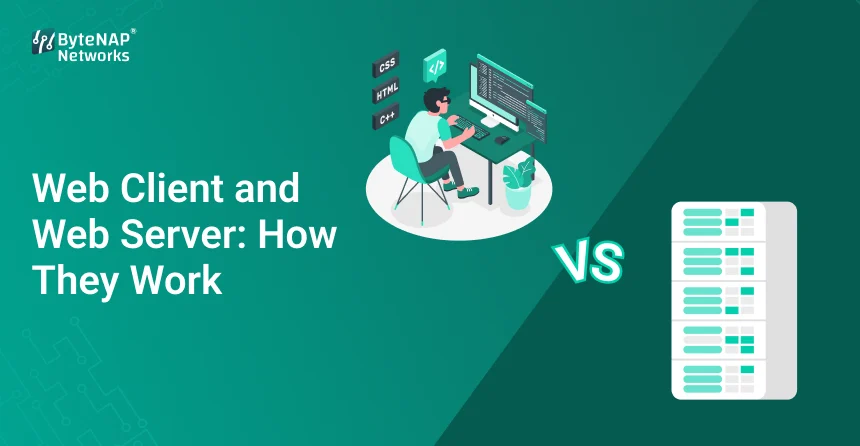
  • Web Client and Web Server: How They Work

    Web Client and Web Server: How They Work

    Have you ever typed in a website address and wondered what really goes on behind the scenes? In only a few seconds, a fully designed page will show up on your screen. But how does that magic work?

    The answer is in how the web client and web server talk to each other.

    This tutorial will make everything easier for you if you’re new to web development, a student learning about networking, or a business owner trying to figure out how your website works. We will make it clear:

    • What a web client and a web server do
    • What makes a web client different from a web server
    • How a web client and a web server operate together
    • Examples and situations from the real world
    • Important benefits and useful information

    By the end of this essay, you will know everything that happens to a website request, from your screen to the server and back.

    Let’s go through it step by step.

    What is a client on the web?

    Any device or program that sends a request to access web content is a web client. This is usually your web browser.

    Some common web clients are:

    • Google Chrome
    • Mozilla Firefox
    • Microsoft Edge
    • Safari

    Your browser is the web client when you type in a URL. It sends a request to a web server for data.

    Before we talk about the distinction between a web client and a web server, we need to know what a web client does.

    What is a server on the web?

    A web server is a piece of software and hardware that gets requests from web clients and sends back the web pages or data that were asked for.

    Some well-known web server software is:

    • Apache Web Server
    • Nginx
    • IIS from Microsoft
    • The web server keeps files for websites, like
    • HTML
    • CSS and JavaScript
    • Pictures
    • Databases

    Now that we know what both parts are, let’s look at the difference between a web client and a web server in more detail.

    What is the difference between a web client and a web server?

    A lot of people mix these two words up. Here’s a simpler way to compare:

    • Web Client Web Server
    • Sends a requestGets a request
    • Shows content Hosts content
    • Works on the user’s device and the hosting machine

    For example, Chrome and Apache are both web browsers.

    The major distinction between a web client and a web server is what they do to help people talk to each other.

    • The web client wants to know.
    • The server on the web responds.

    Knowing the difference between a web client and a web server will help you understand how websites work.

    How to Use a Web Client and a Web Server Together (Step by Step)

    Now let’s go over how the web client and web server work together step by step.

    Step 1: The user types in a URL

    • You write: www.example.com
    • Your web client (browser) gets ready to send a request.

    Step 2: Look up the DNS

    • The Domain Name System (DNS) is what the web client uses to find the IP address of the web server.
    • This phase is very important for understanding how a web client and a web server work together.

    Step 3: Making an HTTP Request

    The web client sends a request to the web server using HTTP or HTTPS.

    For example:

    • GET /index.html HTTP/1.1
    • This request is the basis for how a web client and a web server operate together.

    Step 4: Processing on the Server

    The server on the web:

    • Gets a request
    • It processes it
    • Gets files or information from a database

    It talks to backend apps before answering if it has to.

    Step 5: The HTTP response

    The web server sends a message back to the web client.

    The answer has:

    • Files in HTML
    • CSS
    • Pictures
    • Scripts

    This is where you can see how the web client and web server interact together in real time.

    Step 6: Making the Page

    • The browser reads the files and displays the webpage.
    • And just like that, the webpage shows up on your screen.

    That’s how a web client and a web server operate together all the time.

    Example from the real world: a website for shopping online

    Picture this: you go to an online store.

    This is how the web client and web server talk to each other:

    • You open the website (request from the web client).
    • The web server sends data about the homepage.
    • You look for a product.
    • The web client sends a search query.
    • The database gives the web server product information.
    • The results are shown.

    This real-world example shows the distinction between a web client and a web server much better.

    Why It’s Important to Know the Difference Between a Web Client and a Web Server

    You might be wondering why this information is important.

    Here’s why:

    1. Better help with website problems

    When anything goes wrong, knowing the difference between a web client and a web server can help you figure out:

    • Is there a problem with the browser?
    • Is the server not working?

    2. Better skills for building websites

    To make apps that can grow, developers need to know how web clients and web servers interact together.

    3. More awareness of security

    Cybersecurity threats aim at:

    • Web clients (weaknesses in browsers)
    • Web servers (wrongly set up servers)

    Knowing how the web client and web server work together helps you come up with better ways to secure yourself.

    4. Improving performance

    The speed of a website depends on how quickly the web client can render and how quickly the web server can respond.

    Both of these things make the user experience better.

    Important Protocols That Make Communication Possible

    You need to know these protocols to completely grasp how a web client and a web server work together:

    • TCP/IP
    • HTTPS makes ensuring that communication between a web client and a web server is encrypted.

    Common Problems Between Web Client and Web Server

    Here are some common problems:

    • 404 Error: The file could not be found.
    • Error 500 on the server
    • Errors that happen when a timeout occurs
    • Problems with SSL certificates

    Knowing the difference between a web client and a web server will help you figure out what’s wrong with them.

    Web Client vs. Web Server in Today’s Architecture

    Today’s buildings have:

    • Load balancers
    • Services for CDN
    • Hosting in the cloud

    Platforms in the cloud, like:

    • Amazon’s Web Services
    • Azure from Microsoft

    Platform for Google Cloud

    have changed the way web clients and web servers work together around the world.

    Advanced Insight: Web Clients and APIs

    APIs are often used in modern online apps.

    For example:

    • A mobile app works like a web client.
    • Server sends JSON data

    This displays another method that a web client and a web server can operate together besides on regular webpages.

    Questions that people often ask (FAQ)

    1. What is the most important distinction between a web client and a web server?

    The web client sends requests, and the web server gets the requests and gives back data.

    2. In basic terms, how do the web client and web server function together?

    The web client asks for information, and the web server gives it to them.

    3. Is it possible for a device to be both a web client and a web server?

    Yes. A system can both serve content and ask for content from another server.

    4. Is a browser a web client?

    Yes, Chrome and Firefox are web clients.

    5. Why is it vital for developers to know the difference between a web client and a web server?

    It helps make web apps that are fast, safe, and can grow.

    Last Thoughts

    The connection between a web client and a web server is what makes the internet work.

    Knowing the difference between a web client and a web server gives you the tools you need to fix problems, make things run faster, and make better digital solutions.

    From the time you enter in a URL to the time a webpage loads, you now fully understand how a web client and a web server work together.

    Are you ready to go deeper?

    Keep learning if you want to work in web development, cloud hosting, or server management.

    Learn more about networking, try out different hosting setups, and build up your technical skills.

    Want more professional guides that are also easy to understand? Follow or subscribe to get frequent updates on web infrastructure and technology.

  • Affordable Web Hosting with Budget-Friendly Plans

    Affordable Web Hosting with Budget-Friendly Plans

    It’s fun to make a website, but the fees may mount up rapidly. Hosting comes after domains, design, content, and marketing. Many new businesses, small businesses, and even amateurs think that decent hosting has to cost a lot of money. But that doesn’t have to be the case.

    This is where cheap web hosting comes in.

    We’ll talk about what “affordable web hosting” truly means, how budget web hosting plans function, and how you can obtain good performance without spending a lot of money in this session. This blog will help you find a good, cheap hosting option, whether you’re starting your first blog or running a company site that is growing.

    What does it mean to host a website for cheap? 

    When you pay a little monthly fee for hosting services that offer important characteristics like uptime, speed, and security, you are getting cheap web hosting. These plans are for people who want hosting that works properly but don’t want to pay a lot for it.

    To sum up:

    • You pay to use a server’s space.
    • That’s where the files for your website are kept.
    • People can look up your site on the web.
    • Every month or year, you have to pay a modest cost.

    You don’t lose anything you need when you choose an inexpensive web hosting service; you just don’t pay for items you don’t need.

    A lot of individuals want cheap web hosting right now because

    The need for cheap web hosting has grown a lot because:

    • Every day, more and more people are starting their own websites.
    • Small firms want to cut their costs of doing business.
    • People who work for themselves and people who manufacture goods need cheap web hosting.
    • Hosting technology is less expensive and functions better.

    Thanks to modern technology, cheap website hosting may now be able to do things that used to require expensive servers.

    Who Should Pick Cheap Web Hosting?

    The ideal way to use cheap web hosting is:

    • People who are new to making websites
    • People that write blogs and make things
    • People who own small businesses
    • Self-employed people and businesses
    • Websites for personal use and portfolios
    • New businesses that are only starting started

    If your website doesn’t need a lot of resources right now, inexpensive web hosting is a great place to start.

    A lot of cheap web hosting plans

    You can choose the best cheap web hosting service if you know the different kinds of hosting.

    1. Shared Hosting (The Cheapest Choice)

    • One server hosts many websites.
    • Cheap web hosting
    • Great for people who are just starting off

    This is the most frequent type of cheap web hosting.

    2. Affordable WordPress CMS Hosting

    • Made to work best with WordPress
    • Simple to set up and utilise

    A lot of the time, affordable web hosting plans include this.

    3. Putting a budget in the cloud

    • Can work with more than one server
    • More reliable for less money

    Not as cheap as shared hosting, but still cheap

    4. VPS Hosting for People Who Are New

    • More power and resources
    • Cheap web hosting for sites that are getting bigger

    It costs more than shared hosting, but it might grow with your needs.

    When looking for cheap web hosting, keep these things in mind:

    There are differences between cheap web hosting services. Before you make a choice, look at this:

    • Important Features
    • A promise of 99.9% uptime
    • SSD storage makes things load faster.
    • Free SSL certificate
    • Hosting for email

    A control panel that is simple to use, like cPanel

    The best cheap web hosting companies offer good service at a fair price.

    How to Choose the Best Cheap Web Hosting in Steps

    Step 1: Figure out what your website is for

    Take a moment to ponder about this:

    • Is it a blog, a business site, or a portfolio?
    • What do you imagine the traffic will be like?
    • If you know what you want, you won’t have to pay too much.

    Step 2: Look at the different web hosting plans that fit your budget.

    Hey:

    • Prices for each month compared to the whole year
    • Costs of renewing
    • Features that come with it

    At first, some cheap web hosting services appear like a fantastic deal, but ultimately wind up costing more.

    Step 3: See how quickly and well it works

    Even cheap web hosting should include:

    • Pages load quickly
    • Always on time
    • Optimised servers

    For both users and SEO, speed is really important.

    Step 4: Check out the client service

    Here are some things that still make for good web hosting at a fair price:

    • Always ready to help
    • A means to buy tickets or communicate in real time
    • A group of facts

    Step 5: Check for Scalability

    Your site could get bigger. Pick cheap web hosting that lets you:

    • Upgrading plans is simple.
    • Scaling resources
    • Help with moving
    • Real-life example: inexpensive hosting

    A freelance graphic designer needed a website to show off their work, but they didn’t want to spend a lot of money on it.

    They pick cheap web hosting with:

    • Plan for hosting that is shared
    • SSL doesn’t cost anything
    • One click will set up WordPress.

    The end outcome is:

    • The website started with a tiny monthly budget.
    • Pages that load quickly
    • There is a business email in the package.

    This proves that cheap web hosting services might be useful.

    1. Low Initial Investment: The Benefits of Cheap Web Hosting

    You don’t have to spend a lot of money to get online. This is why new people and businesses should choose affordable web hosting.

    2. Low cost and reliable performance

    Modern web hosting that doesn’t cost much has good uptime and performance.

    3. Easy to set up for people who are new to it

    Most cheap web hosting plans come with:

    • Installations with one click
    • Dashboards that are easy to use
    • Not much technical knowledge is needed

    4. A base that helps with search engine optimisation

    Cheap web hosting with fast servers, SSL, and a lot of uptime can help your site show up higher in search results.

    5. Grows with You

    Cheap web hosting is great since you may start with a small site and add more later.

    A lot of people think that cheap web hosting isn’t excellent.

    Myth 1: You can’t trust cheap hosting

    Many cheap web hosting companies use the same technology as more expensive ones, which is true.

    Myth 2: Hosting on a budget takes a long time.

    SSD storage and efficient servers make low-cost website hosting surprisingly speedy.

    Myth 3: You Can’t Get Help with Low-Cost Plans

    Most cheap web hosting plans do include customer care around the clock, seven days a week.

    Things to Stay Away From When Choosing Cheap Web Hosting

    • Picking the plan with the lowest price without looking at what it offers
    • Not paying attention to the costs of renewals
    • Not considering alternate ways to back up
    • Not using security features
    • There are too many locations on one plan.

    If you stay away from these, your cheap web hosting experience will be good.

    Frequently Asked Questions About Inexpensive Web Hosting

    1. What does it mean to host a website for a low price?

    Cheap web hosting gives you the basic hosting capabilities you need for a small monthly or yearly fee.

    2. Is it safe to host a website for a low price?

    Yes, cheap website hosting can be reliable if you choose a good company.

    3. Is it possible to host a commercial website on cheap web hosting?

    Yes, for sure. A lot of small businesses do well with affordable web hosting options.

    4. Does cheap hosting damage SEO?

    No. For SEO, it’s good to have SSL and quick load times on your web hosting.

    5. Can you upgrade later?

    Yes, most cheap web hosting plans let you easily upgrade as your site gets bigger.

    Why long-term affordable web hosting is necessary

    When you host your site, it’s not just about saving money; it’s also about spending it intelligently. When you pick the correct cheap web hosting, you:

    • Less risk
    • Get going faster
    • Confidently scale
    • Think about growth instead of costs.

    Most websites will get the best deal from budget web hosting services.

    Final Thoughts

    You don’t need to spend a lot of money on a server to make a great website. If you acquire the correct cheap web hosting, you can enjoy speed, dependability, security, and room to grow without going over your budget.

    You may expand at your own speed with cheap website hosting, whether you’re just starting out or already have a lot of projects going on.

    Call to Action (CTA)

    Do you need web hosting that is both reliable and cheap?

    Our cheap web hosting plans are made to give you good performance without costing you a lot of money.

    Want more advice on how to host, build websites, and grow your business online?

    Sign up for our blog to hear what experts have to say.

  • Managed vs Unmanaged VPS: Best Option for Your Business

    Managed vs Unmanaged VPS: Best Option for Your Business

    Your server is the most important part of your online presence in today’s digital-first era. If you have a business website, an eCommerce store, a SaaS platform, or internal applications, even a small server issue can cause downtime, data loss, or security breaches. This is why understanding Managed vs Unmanaged VPS becomes crucial when choosing the right hosting approach. After a hack, slow performance, or sudden crashes, many organisations only realise how important it is to properly manage their servers.

    This blog is here to assist you stay away from those issues

    This tutorial will teach you all you need to know about managing server security and stability, why it’s important, and the best things you can do right away, no matter how new or experienced you are in IT.

    What do “server security” and “stability” mean?

    Let’s set the stage before we go into best practices.

    What is server security?

    Server security is the steps that are done to keep a server safe from:

    • Access without permission
    • Malware and ransomware
    • Breaches of data
    • Attacks that cause DDoS
    • Weaknesses in configuration

    It takes software, hardware, network policies, and human processes all working together to keep data and apps safe.

    What is Server Stability?

    Server stability means that your server:

    • Doesn’t crash and runs all the time
    • Easily handles traffic and job loads
    • Works well over time without fail
    • Gets over failures swiftly

    In short, a stable server is always online, fast, and reliable, even when there are a lot of people using it or something unexpected happens.

    Security and stability work together to make sure your server is safe and reliable

    Why it’s important to keep your server safe and stable

    If you don’t take care of your server, bad things can happen:

    • Loss of revenue and downtime
    • Problems with trust from customers
    • Risks of legal and compliance
    • Poor website performance and SEO effects
    • Data loss that lasts forever

    A Real-Life Situation

    Picture an internet store having a holiday sale. There are abrupt increases in traffic, but the server isn’t ready for them. Outdated software also makes it easier for hackers to get in. What happened? The website goes down, clients can’t place orders, and private information is made public.

    All of this could have been avoided with good server administration.

    Best Ways to Keep Your Server Safe and Stable

    Let’s look at some tried-and-true best practices that can help you maintain your infrastructure safe while successfully managing your server resources.

    1. Update your server and software

    One of the most common reasons servers are vulnerable is because they have old software.

    What to Keep Up to Date:

    • Operating system (Linux, Windows Server, etc.)
    • Apache, Nginx, and IIS are all examples of web server software.
    • Control panels (like cPanel and Plesk)
    • CMS and add-ons (like WordPress and Joomla)
    • Updates to the kernel and security fixes

    Why It Matters:

    • Fixes security holes that are already known
    • Makes things run better and work together better
    • Stops attacks that target older versions

    Pro Tip: Whenever you can, automate updates. But always test large upgrades in a staging environment.

    2. Use strong access control and authentication

    Weak passwords make it easy for attackers to get in

    Best Ways to Do Things:

    • Make sure your passwords are strong and one-of-a-kind.
    • Turn on multi-factor authentication (MFA)
    • Restrict access to root or admin
    • Give permissions based on roles
    • Turn off user accounts that aren’t being used.

    For example:

    Instead of giving your whole team access to one root account, make separate user accounts with limited capabilities. This makes it easier to keep an eye on things and lower the risk

    3. Set up rules for network security and a firewall

    A firewall is the first thing that protects your server from outside attacks.

    What to do:

    • Turn on the server-level firewall, which could be UFW, iptables, or Windows Firewall.
    • Only let in the ports that are needed (like 80, 443, and 22)
    • Limit SSH access via IP address
    • Use Web Application Firewalls (WAF)

    Good thing:

    Firewalls stop bad traffic from getting to your server in the first place.

    4. Check the performance and logs of your server on a regular basis

    You can’t mend something you can’t see.

    What to Keep an Eye On:

    • How much of the CPU is being used
    • Use of RAM and disc
    • Traffic on the network
    • Logs of errors
    • Attempts to log in

    Things You Can Use:

    • Tools for monitoring servers (Nagios, Zabbix, Prometheus)
    • Hosting panels have built-in dashboards.
    • Tools for analysing logs

    Monitoring can assist you:

    • Find security threats early
    • Find out what’s slowing down performance
    • Make the server more stable

    5. Make good use of server resources

    Bad resource allocation can cause crashes and slow performance

    How to Handle Server Resources:

    • Make the web server’s settings better
    • Use caching tools like Redis, Varnish, and Memcached.
    • Limit the number of processes running in the background
    • Get rid of files and databases you don’t utilize
    • Scale resources based on how much traffic you get

    For example:

    If your website slows down when there are a lot of visitors, adding more RAM or turning on caching can make it much more stable

    6. Make sure to back up your data and have a plan for how to get it back.

    No server is completely safe from breaking down.

    Best Practices for Backups:

    • Set up backups to happen automatically every day or week
    • Keep backups on the cloud or at a different location.
    • Check that your backups can be restored often.
    • Keep more than one backup version

    Why This Is Important:

    Backups guarantee you can swiftly restore data with little delay in case of hacking, device failure, or inadvertent deletion.

    7. Make sure your web server is set up correctly.

    Servers that aren’t set up right are easy targets.

    Best Ways to Do Things:

    • Turn off directory listing
    • Hide information about the server version
    • Use SSL/TLS certificates to make sure HTTPS is used.
    • Use secure headers like HSTS, CSP, and X-Frame-Options

    Advantage:

    Hardening a web server correctly makes it harder for attackers to get in and makes users and search engines trust it more.

    8. Keep Malware and DDoS Attacks at Bay

    Every day, cyber risks get worse

    What to do:

    • Set up malware scanners
    • Turn on intrusion detection systems (IDS)
    • Use services that protect against DDoS attacks
    • Keep an eye on traffic patterns that aren’t normal

    Example from the real world:

    A blog that suddenly gets a lot of traffic could look successful, but it could be a DDoS attack. Security monitoring helps you tell the difference between progress and danger.

    9. Do security audits on a regular basis

    Setting up security isn’t a one-time thing

    What to Check:

    • Ports and services that are open
    • User rights
    • Software that has been installed
    • Access logs and log files

    Regular audits assist find risks that aren’t obvious and make sure your server follows best practices.

    10. Pick the Right Place to Host

    The choice of hosting affects both security and stability

    There are options like:

    • Shared hosting (not much control)
    • VPS hosting (better use of resources)
    • Dedicated servers (full control)
    • Cloud servers that can grow and are strong

    VPS or dedicated servers give organisations more control over server security, which is important for reliability and speed.

    Advantages of Properly Managing Server Security and Stability

    You get the following when you follow excellent practices:

    • Better uptime and performance
    • Better protection for data
    • Faster load times lead to better SEO rankings.
    • More trust from customers
    • Fewer risks in operations
    • Less expensive long-term upkeep

    In short, a well-run server helps a firm expand.

    Questions that are often asked (FAQs)

    1. How often should I make changes to my server?

    You should apply important security updates right away. You should check for updates every week or month.

    2. How can you best take care of a web server?

    For people who are new to server maintenance, using a control panel like cPanel or managed hosting services makes things easier.

    3. Can small businesses not worry about server security?

    No. Small businesses are often targeted since their security systems aren’t as strong.

    4. How can I tell if my server is not stable?

    Common symptoms are frequent downtime, poor loading times, high CPU utilisation, and error logs.

    5. Do low-traffic websites need to keep an eye on their servers?

    Yes. Monitoring helps find security threats early and makes sure that performance stays the same no matter how much traffic there is.

    In conclusion, take charge of your server right now.

    It is not optional to have secure and stable servers. These best practices can help you manage server resources well, lower risks, and give users a reliable experience, whether you run only one website or many applications.

  • Virtual Private Server vs Shared Hosting: Smart Pick Now

    Virtual Private Server vs Shared Hosting: Smart Pick Now

    Your website is more than simply an online brochure in today’s digital age. It’s your business’s identity, shopfront, and money-making machine. But a lot of people don’t think about this important choice until it becomes a problem: picking the correct hosting environment.

    Your hosting package is probably at blame if your website is slow, continually crashing, or has trouble handling consumer traffic. You might have chosen shared hosting because it was cheap, but now you’re thinking about getting a Virtual Private Server (VPS) for greater power. You’re not the only one. Thousands of organisations are trying to decide between a Virtual Private Server and Shared Hosting when they grow.

    This article clears up any uncertainty and helps you make the best choice for your business now while also thinking about how it will grow in the future. We’ll explain everything in simple terms that even a newbie can understand. We’ll compare Managed VPS vs Shared Hosting and help you pick the one that works best for you in terms of speed, security, flexibility, and price.

    What is hosting that is shared? (An easy-to-understand explanation)

    Shared hosting is the most frequent and affordable way to host a website. Imagine a big apartment block where a lot of families use the same water, electricity and parking. on the same way, on a shared hosting plan:

    • Hundreds of websites share one physical server.
    • The CPU, RAM, bandwidth, and storage are all shared by all websites.
    • How well the server works relies on how other people use its resources.

    Who Should Use Shared Hosting?

    • People who blog
    • Little personal sites
    • Business webpages with few visitors
    • People who own a website for the first time

    It’s cheap and easy to use, but the shared environment makes it harder to regulate and execute.

    What is a VPS, or virtual private server?

    A Virtual Private Server is like having your own private flat in a big building. You share the physical area, but you have your own utilities that only you may utilise.

    This is how it works:

    • Virtualisation technology splits a real server into several virtual servers.
    • Every VPS has its own CPU, RAM, and storage space.
    • The performance of your website doesn’t depend on other websites on the same server.

    Who Needs VPS Hosting?

    • Websites for growing businesses
    • Platforms for e-commerce
    • Blogs with a lot of traffic
    • SaaS apps
    • Websites that need complex settings

    You have more power, security, and freedom than with shared hosting.

    What are the main differences between a virtual private server and shared hosting?

    Here is a clear, easy-to-understand list of the differences between VPS and Shared Hosting:

    1. How well it works

    Shared Hosting:

    • Speed is limited
    • Websites go slower when a lot of people are using them.

    VPS Hosting:

    • Pages load faster
    • Dedicated resources make sure things stay the same.

    2. Safety

    Shared Hosting:

    • Weaknesses because of shared spaces
    • An attack on one website impacts all

    VPS Hosting:

    • Environment that is separate
    • Better firewall and more powerful security tools

    3. Scalability

    Hosting Shared:

    • Few possibilities for upgrades
    • Not the best choice for expanding websites

    VPS Hosting:

    • RAM, CPU, and storage that can be easily expanded
    • Can handle more traffic and apps

    4. Personalisation

    Hosting that is shared:

    • Access is limited
    • Installing software is limited.

    VPS Hosting:

    • Most of the time, full root access
    • Set up custom apps and tweak server parameters to get the best performance.

    5. Price

    Hosting that is shared:

    • The cheapest choice (starts low)

    Hosting VPS:

    • Costs more but has far superior performance and features

    Which hosting works better in real life?

    Scenario 1: A website for a small business

    A startup bakery can use shared hosting to get its website up and running. It has a lot of traffic and requires a cheap, straightforward fix.

    Shared Hosting: The Smart Choice

    Scenario 2: Online Store

    An online electronics store that takes payments, shows enormous pictures, and lets users do things in real time needs to be fast and safe.

    VPS Hosting is a Smart Choice

    Scenario 3: Expanding a news or blog site

    If a blog has more than 1,000 visits a day, it will load slowly on shared hosting.

    VPS hosting is a smart choice for performance and uptime.

    Scenario 4: A web app or SaaS

    If you host programs that need certain settings, shared hosting won’t work for them.

    Managed VPS Hosting: A Smart Choice

    Why VPS Hosting Is the Best Choice Right Now

    The digital world is evolving. Traffic spikes, cyber risks, and what customers want require more than just basic hosting. Here’s why more people are moving from shared hosting to VPS hosting:

    1. Faster loading means more sales.

    A delay of even one second can cut conversions by 7%. VPS makes things run faster and helps with SEO.

    2. Better Safety

    A private server environment lowers risks because cyberattacks happen more and more each year.

    3. Ready for Business Growth

    You don’t have to move your VPS around a lot; it develops with your business.

    4. Access to more advanced tools

    VPS lets you:

    • Firewalls that are made to order
    • Caching at the server level
    • Control of resources
    • Installing software

    5. Long-Term Cost-Effectiveness

    VPS costs more up front, but it saves money by keeping your site up and running and protecting it from security problems.

    How to Choose Between Shared Hosting and VPS: A Step-by-Step Guide

    Step 1: Look at your traffic

    • If you get less than 200 visits a day, you should use shared hosting.
    • More than 1,000 visits a day = VPS Hosting

    Step 2: Figure Out What You Need Technically

    • Website with basic features → Shared
    • VPS for custom apps

    Step 3: Think about what security needs you have

    VPS is necessary if your website keeps track of consumer information.

    Step 4: Look at your budget

    Shared hosting is cheap, but VPS hosting pays out in the long run.

    Step 5: Making sure it will last

    Start with VPS right away if your firm is going to develop shortly.

    Why you should upgrade to VPS today: the benefits of VPS over shared hosting

    • Dedicated CPU and RAM make sure that performance stays the same
    • An isolated virtual environment makes security better
    • Works well with websites that get a lot of traffic
    • Allows full control by giving root access
    • Infrastructure that can grow
    • Faster speed means better SEO performance
    • Great for apps that are important for business and e-commerce

    Which is better: managed VPS or shared hosting?

    Managed VPS Hosting is a game-changer if you’re not a techie

    Managed VPS comes with:

    • Checking on the server
    • Backups every day
    • Patches and updates
    • Making security stronger
    • Help from experts

    You may enjoy all the benefits of VPS without having to do any technical work.

    When should you pick a managed VPS?

    • If you desire both performance and peace of mind
    • If you own a firm and don’t have an IT crew,
    • If uptime and security are important

    Frequently Asked Questions: Virtual Private Server vs. Shared Hosting

    1. Is VPS hosting faster than shared hosting?

    Yes. VPS gives you dedicated resources, which makes it much faster and more reliable.

    2. Does shared hosting have an effect on SEO?

    Yes. Google rankings can drop if your site takes a long time to load or goes down.

    3. Can VPS hosting be used by beginners?

    Yes, especially with Managed VPS Hosting, which doesn’t need any technical knowledge.

    4. When is it time to move from shared hosting to VPS?

    When your website gets bigger, slower, needs more security, or goes down a lot.

    5. Is it worth it to pay more for VPS?

    Yes. It’s a good long-term investment because it improves performance, security, and scalability.

    Conclusion: What Is the Best Choice Right Now?

    If you’re just starting out and don’t get a lot of visitors, shared hosting is fine. If your website is getting more visitors, making money, or needs better speed and security, though, moving to a VPS is not only sensible, it’s required.

    A VPS gives you more independence, power, security, and room to grow than shared hosting can. If you want to grow your business online, Virtual Private Server (VPS) is the clear winner over Shared Hosting.

  • Bare Metal Recovery: How It Works and Why It Matters

    Bare Metal Recovery: How It Works and Why It Matters

    Think about this: your main server goes down because of a hardware breakdown, a ransomware assault, or a serious system corruption. The operating system, applications, and settings are all gone, but your data is safe. If you have to rebuild everything by hand, it could take days or even weeks, and your firm will lose time, money, and client trust.

    This is when Bare Metal Recovery (BMR) really comes in handy.

    In this in-depth article, we’ll explain what bare metal recovery is, how it works, and why it’s important for enterprises of all sizes. This blog will give you clear information, real-world examples, and useful tips on how to secure your systems, whether you’re an IT professional, a business owner, or just starting to learn about disaster recovery tactics.

    What is bare metal recovery?

    When a catastrophic failure happens, Bare Metal Recovery (BMR) is the process of putting a whole system back on a blank or “bare metal” machine. This includes the operating system, applications, system settings, and data.

    Bare metal recovery lets you reconstruct a whole system from the beginning without having to reinstall the operating system or software by hand, unlike file-level or application-level restores.

    To put it simply:

    Bare metal recovery brings back:

    • Operating system (Linux or Windows)
    • Settings and drivers for the system
    • Apps that are already installed
    • Files and data about users

    A single, smooth process for everything.

    What does “bare metal” recovery mean?

    A “bare metal” machine is one that doesn’t have an operating system installed; it’s just raw hardware. After things like:

    • Failure of the hard drive
    • Attacks with ransomware
    • Corruption of the server
    • Disasters in data centres

    Your system can end up with nothing but broken hardware. BMR puts everything back to life.

    Step-by-Step Guide on How Bare Metal Recovery Works

    You can see why bare metal recovery is such a powerful disaster recovery solution if you understand how it works.

    Step 1: Make a complete backup of the system

    Before anything bad happens, a full image backup of the system is made. This includes:

    • OS
    • Files for booting
    • Uses
    • How to set up your system
    • Information

    People usually keep these backups on:

    • Drives from outside
    • Network-attached storage (NAS)
    • Storage in the cloud

    Step 2: Start up from the Recovery Media

    When something goes wrong, the system starts up with:

    • A CD or DVD for recuperation
    • Drive for recovery on USB
    • Recovery environment based on a network

    This recovery DVD starts the process of restoring bare metal.

    Step 3: Find the Hardware

    The environment for recovery:

    • Finds new or old hardware
    • Loads the drivers that are needed
    • Gets discs ready for restoration

    Modern BMR solutions allow you to restore to hardware that is not the same as the original system.

    Step 4: Get the System Image Back

    The bare metal machine gets the backup image, which restores:

    • Operating system
    • Uses
    • Setups
    • Information

    There is no need to install anything by hand.

    Step 5: Restart and get back to work

    After it has been fixed:

    • The system restarts
    • Final changes to the hardware are made.
    • The system goes back to normal functioning.

    There is less downtime, usually only a few hours instead of days.

    Bare Metal Restore Process vs Traditional Recovery

    FeatureTraditional RestoreBare Metal Recovery
    OS ReinstallationManualAutomatic
    Time RequiredHighLow
    Human Error RiskHighMinimal
    Hardware FlexibilityLimitedHigh
    Disaster ReadinessPartialComplete

    Bare metal recovery is designed for worst-case scenarios, not just minor data loss

    Real-World Example: Bare Metal Recovery in Action

    Scenario: Ransomware Attack on a Small Business

    A mid-sized eCommerce business was hit by ransomware that locked up their server OS and apps.
    Without BMR:

    • Reinstalling the OS takes 4 to 6 hours.
    • Setting up the application: 1–2 days
    • Data recovery: More time
    • Total time down: 3 days or more

    With Bare Metal Recovery:

    • Media for boot recovery
    • Restore a backup image that is clean
    • Start operations again

    Total time down: less than 3 hours

    The company saved thousands of dollars in missed sales and kept customers’ trust.

    Important Benefits of Bare Metal Recovery

    1. Faster recovery from disasters

    BMR cuts recovery time goals (RTOs) by a lot by restoring everything in one step.

    2. Full System Restoration

    You’re not simply recovering data; you’re restoring the whole environment to how it was.

    3. Less Mistakes by People

    Automated recovery cuts down on mistakes that happen a lot during manual rebuilds.

    4. Independence from hardware

    Restore systems even if the original hardware isn’t available or is out of date.

    5. Perfect for following the rules and keeping the business going

    BMR helps to meet:

    • Plans for keeping a business running (BCP)
    • Policies for disaster recovery (DR)
    • Requirements for following the rules

    Who Needs to Recover Bare Metal?

    Bare metal recovery isn’t just for big businesses

    It’s important for:

    • Businesses of all sizes
    • Data centres and companies that host websites
    • Managed service providers (MSPs)
    • Businesses have systems that are vital to their mission
    • Companies that work with private information

    If downtime hurts your business’s reputation, income, or operations, BMR is not an option.

    Some common uses for bare metal recovery are

    • Crashes of servers or hardware
    • Corruption of the operating system or failed updates
    • Attacks with malware or ransomware
    • Moving to new hardware
    • Data centre outages
    • Restores from the cloud to the server

    The best ways to make a bare metal recovery strategy work

    1. Set up regular full backups

    Make sure that backups of the system image are:

    • Automatic
    • Often
    • Checked for honesty

    2. Check to see if your bare metal restore process works.

    A backup is pointless if you can’t get it back. Do test restores every so often.

    3. Keep backups safe

    Use:

    • Storage off-site
    • Backups in the cloud
    • Backup locations that are encrypted

    4. Keep recovery media safe

    Always keep:

    • Updated images of recovery
    • Drivers that work with newer hardware

    5. Write down the steps for recovery

    Clear documentation speeds up recovery, even when important IT staff members are not present.

    What is the difference between bare metal recovery and backup?

    Backing up is making copies of data.

    Restoring the whole system environment is what bare metal recovery means.

    Think of backup as the parts and BMR as the whole recipe that makes the meal exactly the same as it was before.

    Questions That Are Often Asked (FAQs)

    1. Is system imaging the same as bare metal recovery?

    System pictures are used in bare metal recovery, but it goes a step further by putting them back on a brand-new machine.

    2. Can bare metal recovery work with different kinds of hardware?

    Yes. Most contemporary systems let you restore data without having to worry about hardware.

    3. How long does it take to recover bare metal?

    It usually takes a few minutes to a few hours, but it depends on the magnitude of the data and the complexity of the system.

    4. Is bare metal recovery a good option for cloud environments?

    Yes, for sure. A lot of cloud and hybrid recovery solutions let you restore bare metal.

    5. Do small enterprises really need to restore bare metal?

    Yes. BMR is very important because small businesses are the ones that suffer the most from downtime and data loss.

    Why Bare Metal Recovery is Very Important

    Downtime is more than just a hassle now; it’s a risk to your organisation. Cyberattacks, hardware failures, and natural disasters are happening increasingly often. Businesses need a recovery solution that is quick, dependable, and covers everything.

    Bare metal recovery makes sure:

    • Staying in business
    • Little time off
    • Responding to disasters faster
    • Relaxation

    It’s not only about fixing systems; it’s also about restoring trust.

    Last Thoughts and a Call to Action

    One of the best tools for modern disaster recovery planning is bare metal recovery. You can keep your organisation from having major problems and long periods of downtime by learning how the bare metal recovery process works and using it effectively.

    Do you want to make your disaster recovery plan stronger?

    Look into enterprise-level backup and bare metal recovery options, or talk to a recovery professional today to protect your systems before something bad happens.

  • How Quantum Server Boosts Web Hosting Speed and Security

    How Quantum Server Boosts Web Hosting Speed and Security

    In today’s digital world, websites need to be fast and secure. A slow website can make visitors leave, while weak security can expose sensitive data to hackers. To solve these problems, the latest Quantum Server technology is changing how web hosting works. These advanced servers use quantum computing to improve both speed and security.

    What is a Quantum Server?

    A Quantum Server is a web hosting server that uses quantum computing technology to process data much faster than traditional servers. Unlike regular computers that use binary bits (0s and 1s), quantum computers use qubits. Qubits can exist in multiple states simultaneously, allowing them to perform complex calculations much faster.

    How Quantum Server Improves Web Hosting Speed

    Speed is one of the most important factors for any website. A slow-loading website frustrates users and can even affect search engine rankings. It solves this issue in the following ways:

    Faster Data Processing

    Traditional servers process data sequentially, but quantum servers handle multiple calculations at the same time using qubits. This reduces the time required to process requests, leading to a faster website experience.

    Reduced Server Load

    Quantum computing can optimize server resources, distributing the load more efficiently. This means that even during high traffic periods, websites remain fast and responsive.

    Better Caching and Data Retrieval

    Web hosting services use cache memory to store frequently used data. Quantum servers make caching more effective by quickly predicting which data users will need next. This results in quicker page load times.

    Improved Content Delivery Networks (CDNs)

    A CDN is a network of servers placed around the world to deliver content quickly to users. Quantum server can optimize routing and traffic management, ensuring users get the fastest possible connection to a website.

    How Quantum Servers Improve Web Hosting Security

    Security is a big concern for website owners. Hackers are constantly looking for ways to steal information or disrupt websites. Quantum server improves security in several ways:

    Stronger Data Encryption

    Encryption keeps data safe by converting it into a code that only authorized users can understand. Quantum computing enables quantum encryption, which is far more secure than traditional encryption methods. Quantum Key Distribution (QKD) makes it nearly impossible for hackers to intercept and decode sensitive data.

    Protection Against Cyberattacks

    Quantum servers can detect cyber threats faster and more accurately than traditional servers. They use quantum algorithms to analyze patterns and identify potential security risks before they become serious threats.

    Secure Authentication Systems

    It improves login and authentication methods by making passwords and security keys much harder to crack. This helps prevent unauthorized access to websites.

    Preventing Data Breaches

    A data breach can cause huge losses for businesses. Quantum security helps protect databases by making it nearly impossible for attackers to break into systems and steal user information.

    Other Benefits of Quantum Servers in Web Hosting

    Besides speed and security, it offers several other advantages:

    Better Resource Management

    It efficiently manages how resources are used, reducing waste and optimizing performance. By distributing workloads more effectively, they help lower web hosting costs and improve overall server efficiency.

    Energy Efficiency

    Quantum computing is designed to process vast amounts of data with minimal energy consumption. Compared to traditional servers, they require less power, reducing electricity costs and the carbon footprint of data centers. This makes web hosting providers more environmentally friendly.

    Advanced AI and Machine Learning Integration

    It enhances artificial intelligence (AI) and machine learning (ML) by processing complex calculations at incredible speeds. This leads to smarter chatbots, improved recommendation systems, and enhanced automated website functions. Businesses can provide better user experiences through AI-powered features that operate in real-time.

    Conclusion

    It is transforming web hosting by making websites faster and more secure. Their ability to process data quickly improves website performance, while quantum encryption and advanced security features protect against cyber threats. Even though this technology is still developing, it has the potential to change the future of web hosting. In the coming years, more businesses will adopt quantum servers to provide better and safer online experiences for users worldwide.

  • Understanding QPU Processor | Qubit Probability and Advantages

    Understanding QPU Processor | Qubit Probability and Advantages

    Quantum computing is a new and exciting field of technology that has the potential to change the way we solve problems. Unlike traditional computers, which use bits to store and process information as 0s and 1s, quantum computers use quantum bits or qubits. Qubits are special because they can exist in both 0 and 1 states simultaneously, thanks to a property called superposition. However, when we measure a qubit, it collapses to either 0 or 1, with a certain probability. This probability is important in quantum computing, and quantum processing units (QPUs) help solve these probabilities effectively. Let’s explore how a QPU Processor helps determine the likelihood of a qubit being measured as 0 or 1 and the advantages of using QPUs in computing.

    Understanding Qubits and Probability

    In classical computing, a bit can only be in one of two states: 0 or 1. In quantum computing, a qubit can be in a superposition, meaning it exists in both states at the same time until measured. The probability of a qubit collapsing to 0 or 1 depends on its quantum state, which is described by a mathematical equation. Each qubit has an associated probability amplitude, which determines the likelihood of measuring it as 0 or 1. The sum of these probabilities always equals 1. For example, a qubit might have a 70% chance of collapsing to 0 and a 30% chance of collapsing to 1. Quantum algorithms use these probabilities to perform complex calculations much faster than classical computers.

    How QPUs Solve the Probability of a Qubit Being 0 or 1

    A Quantum Processing Unit (QPU) is the core of a quantum computer. It consists of several qubits and performs quantum operations. Here’s how a QPU Processor helps solve the probability of a qubit being 0 or 1:

    Quantum Gates and Operations: QPU Processor uses quantum gates to manipulate qubits. These gates apply mathematical transformations that change the probability amplitudes of the qubits. By applying different quantum gates, QPUs control the chances of a qubit being measured as 0 or 1.

    Superposition and Interference: QPUs maintain the superposition state of qubits until measurement. They use quantum interference, where probabilities add or cancel out, to optimize the probability of obtaining the correct result in a calculation.

    Measurement Process: When a qubit is measured, the QPU Processor calculates its probability based on its amplitude. The measurement collapses the qubit’s state, and the result is recorded as either 0 or 1. By running quantum algorithms multiple times, the QPU gathers statistical data to determine the most likely outcome.

    Quantum Error Correction: Due to noise and decoherence, quantum computers can make errors in calculations. QPU Processor uses special quantum error correction techniques to reduce errors and improve accuracy when determining probabilities.

    Advantages of Using QPUs

    Using QPUs in computing brings many advantages. Here are some key benefits:

    Faster Computation: QPU Processor can solve complex problems much faster than classical computers. This is because they process multiple probabilities at once using superposition and quantum parallelism.

    Efficient Probability Calculations: Unlike classical computers, which calculate probabilities step by step, QPUs use quantum mechanics to determine probabilities in a fraction of the time.

    Better Optimization Solutions: Many real-world problems, such as traffic flow, financial modeling, and supply chain management, involve probability calculations. QPUs help find the best solutions quickly.

    Enhanced Machine Learning and AI: Quantum computing improves machine learning models by speeding up probability-based calculations. This helps in training AI models faster and making predictions more accurately.

    Advanced Cryptography and Security: Quantum computers use probability-based encryption methods that are far more secure than classical encryption. This makes QPUs essential for cybersecurity and data protection.

    Solving Complex Scientific Problems: Fields like physics, chemistry, and medicine benefit from QPUs because they can model molecular interactions, predict drug behaviors, and simulate quantum systems more efficiently.

    Parallel Processing Capabilities: QPU Processors process multiple computations at the same time, unlike classical computers that process tasks sequentially. This parallelism leads to higher efficiency in solving probability-related problems.

    Conclusion

    Quantum Processing Units (QPUs) play a crucial role in solving probability problems in quantum computing. By manipulating qubits through quantum gates, maintaining superposition, and using interference, QPUs determine the probability of a qubit being measured as 0 or 1. This ability makes QPU Processor highly valuable in fields like AI, cryptography, optimization, and scientific research. With continuous advancements, quantum computing and QPUs will revolutionize the way we solve complex problems, making computing faster, more efficient, and highly secure.

  • Best Secure Data Transfer | Easy & Safe Methods

    Best Secure Data Transfer | Easy & Safe Methods

    Secure data transfer is crucial in today’s digital environment. Data can include financial information, business records, and personal information. Data can be stolen or misused if it is not transferred securely. For this reason, it is essential to use secure data transport techniques. Let’s examine a few of the most effective secure data transport techniques.

    Encryption

    Encryption is one of the best ways to keep data safe. It changes data into a code so only the right person can read it. Even if someone steals the data, they cannot understand it without a special key. There are two types of encryption: symmetric and asymmetric. Symmetric encryption uses one key to lock and unlock data, while asymmetric encryption uses two keys, one for locking and another for unlocking. Examples of encryption methods include AES (Advanced Encryption Standard) and RSA (Rivest-Shamir-Adleman).

    Secure File Transfer Protocol (SFTP)

    SFTP is a secure way to send files over the Internet. It uses encryption to protect data during transfer. SFTP is better than the old FTP (File Transfer Protocol) because FTP does not encrypt data, making it easy for hackers to steal information. Many businesses use SFTP to transfer files safely.

    Virtual Private Network (VPN)

    A VPN creates a secure tunnel between two devices. It hides your internet activity and keeps data safe from hackers. When using a VPN, all data sent and received is encrypted. This makes VPNs useful for businesses and individuals who want to protect their data while using the internet.

    Secure Socket Layer (SSL) and Transport Layer Security (TLS)

    SSL and TLS are security protocols that protect data when it is sent over the internet. They are used for websites, emails, and online transactions. When you visit a website with “https” in the address, it means SSL or TLS is being used. TLS is the newer and more secure version of SSL.

    End-to-End Encryption (E2EE)

    E2EE makes sure that only the sender and receiver can read a message. This method is used in messaging apps like WhatsApp and Signal. Even if someone intercepts the message, they cannot read it because it is encrypted.

    Cloud Security Measures

    Many people and businesses use cloud storage to save and share data. Cloud services offer security measures like encryption, password protection, and multi-factor authentication (MFA). These features keep data safe from hackers.

    Secure Email Services

    Emails can contain sensitive information. Using secure email services like ProtonMail or encrypted email services helps keep emails safe. Some email providers also offer PGP (Pretty Good Privacy) encryption to protect messages from being read by others.

    Blockchain Technology

    Blockchain is a secure way to transfer data because it records all transactions in a way that cannot be changed. It is used in cryptocurrency, contracts, and secure file transfers. Blockchain technology ensures that data remains safe and cannot be altered by unauthorized users.

    Multi-Factor Authentication (MFA)

    MFA adds an extra layer of security to data transfers. Instead of just using a password, MFA requires a second verification step, such as a fingerprint, SMS code, or authentication app. This prevents hackers from accessing data even if they have the password.

    Zero Trust Security Model

    The Zero Trust model means that no one is trusted by default, even inside an organization. Users must verify their identity every time they access data. This method prevents unauthorized access and ensures that only the right people can transfer or receive data.

    Secure Messaging Apps

    Regular text messages are not secure. Using messaging apps like Signal, Telegram, or WhatsApp, which have strong encryption, ensures that messages remain private and secure during transfer.

    Data Loss Prevention (DLP) Tools

    DLP tools help prevent data from being leaked or stolen. These tools monitor data transfers and block unauthorized sharing of sensitive information. Businesses use DLP to ensure that employees do not accidentally send important data to the wrong person.

    Secure Hardware and Devices

    Using secure USB drives and encrypted external hard drives helps protect data during physical transfers. Some secure USB drives require a password or fingerprint to access the stored data.

    Secure File Sharing Platforms

    Services like Google Drive, Dropbox, and One Drive offer security features such as encryption, access control, and activity monitoring. This ensures that only authorized users can access and transfer files securely.

    Regular Security Updates and Patches

    Cyber threats are always changing. Regularly updating software, apps, and security systems helps prevent hackers from exploiting security flaws. Businesses and individuals should always keep their systems up to date.

    Conclusion

    Secure data transfer is essential to protect personal and business information. By using encryption, VPNs, SSL/TLS, and secure file transfer methods, data can be kept safe from hackers and cyber threats. Businesses and individuals should always follow best practices to ensure secure data transfer and protect their sensitive information from being misused.